Get started
I’d start with the default speech recognition. It runs on your own computer, and you don’t need an account. You can explore the other options later.
What you’ll need
- A Windows PC. Windows 10 or 11, 64-bit. The installer checks whether your Windows version is supported.
- At least 8 GB of RAM. I recommend 16 GB. Setup won’t proceed below 8 GB with the offline speech engines. With cloud speech recognition, about 6 GB is enough.
- 10 GB of free disk space. Leave room for the program and its speech model.
- A microphone. Your laptop’s built-in microphone may be enough. You can connect a microphone after installing.
- An internet connection for setup. The default speech recognition works offline afterward.
Four or more CPU cores are recommended. A slower processor may take longer to turn speech into text.
Download Wheelhouse.
This gets the Windows installer from the project’s GitHub release page. You don’t need a GitHub account.
Download Wheelhouse-Setup.exeOpen the file and follow setup.
The installer checks your computer and asks which options you want. Keep the default local speech recognition if you want speech to stay on your computer.
AI text rewriting is optional. The setup wizard offers a Google cloud option; you can skip it. The full installation guide explains the separate command-line setup for local AI.
Windows may ask an administrator to approve installation of Microsoft’s Visual C++ runtime if your computer needs it.
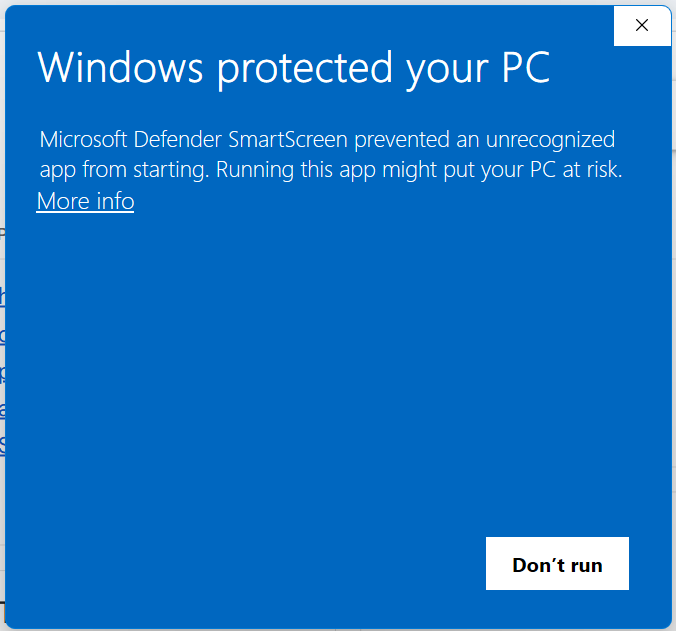
Windows is showing a security warning.
The installer is digitally signed. Its publisher should be David Chesley Hite III—that’s me. Windows SmartScreen may still warn about a download it hasn’t seen often.
Open More info and check the publisher name before choosing Run anyway. If the publisher doesn’t match, stop and get in touch.
Try your first few words.
Start Wheelhouse from the Start menu if setup hasn’t already opened it. It starts listening in its default mode. Open Notepad and put the cursor in the empty document.
Try these one at a time, leaving a brief pause between commands:
- Say
hello world
Your words appear. - Say
new line
The cursor moves to the next line. - Say
undo
That new line is removed. - Say
select all
Your text is selected.
If those worked, you’re ready to start using Wheelhouse. If they didn’t, the setup checks will help you find where things stopped.
Pausing and resuming listening
You can pause listening with the floating button or tray icon and switch it back on the same way. Wheelhouse also has voice commands and listening modes for hands-free use; the guide explains when each applies.